How to Choose a Laptop: A Simple Step-by-Step Guide
Choose a laptop in six clear steps: what you will use it for, budget, operating system, specs, size and the details that matter. No jargon, no hype.
Disclosure: some links in this article are affiliate links, so we may earn a commission on qualifying purchases at no extra cost to you. Learn more.

Step 1: Write down what you will use it for
Before you look at a single model, list the tasks you do every week. Be honest and specific. "Work" is too vague. "Email, video calls, spreadsheets with a few thousand rows and 20 browser tabs" is useful.
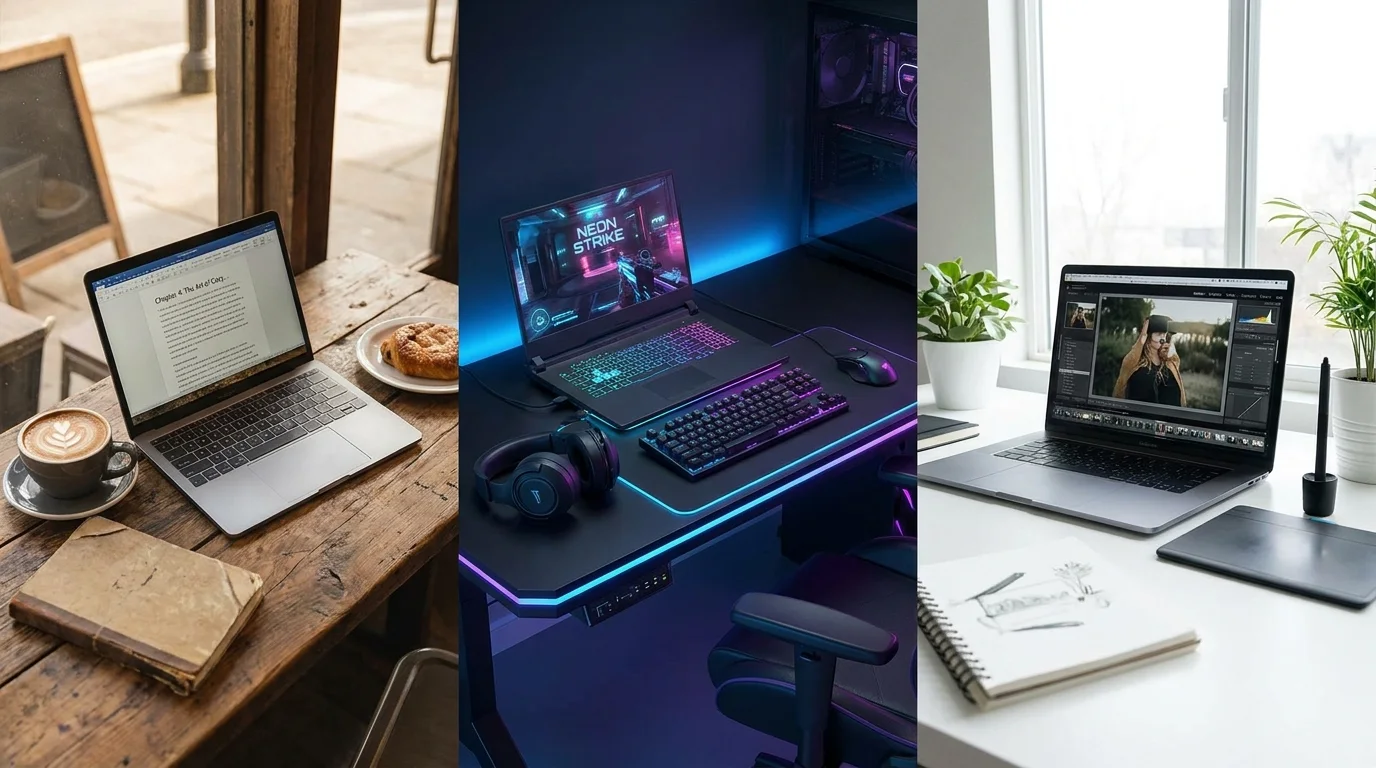
Most uses fall into one of these groups:
Light use: browsing, email, streaming, documents, online classes.
Heavy multitasking: many browser tabs, large spreadsheets, several apps open at once, frequent video calls.
Creative work: photo editing, video editing, design, music.
Technical work: programming, data analysis, virtual machines.
Gaming: modern 3D games, which need a dedicated graphics chip.
Your group decides almost everything else. Light use runs well on modest hardware. Creative work, technical work and gaming each push a different part of the machine, so they need different priorities.
If you are not sure where you fit, the free laptop quiz that matches your answers to a short list asks a few questions about your work, budget and habits and suggests a starting point.
Step 2: Set a budget and stick to it
Decide on a number before you shop. Without one, it is easy to keep adding "just one more upgrade" until you have spent far more than you planned.
Think in rough tiers rather than exact figures:
Entry level: fine for light use if you choose carefully. Look for a decent screen and enough memory rather than a fancy design. Our guide to the best cheap laptops under $500 shows what this tier can do well.
Mid-range: where most people get the best value. You can expect solid build quality, a good screen and enough performance for heavy multitasking.
Premium: worth it if you need more power for creative or technical work, or if you will use the laptop many hours a day and value a better screen, speakers and keyboard.
Leave a little room in the budget for a sleeve, a charger for a second location or an extended warranty if you want one.
Step 3: Pick an operating system
The operating system shapes your daily experience more than any single spec. Choose it based on the apps you need and what you already know.
Operating system | Good fit for | Watch out for |
|---|---|---|
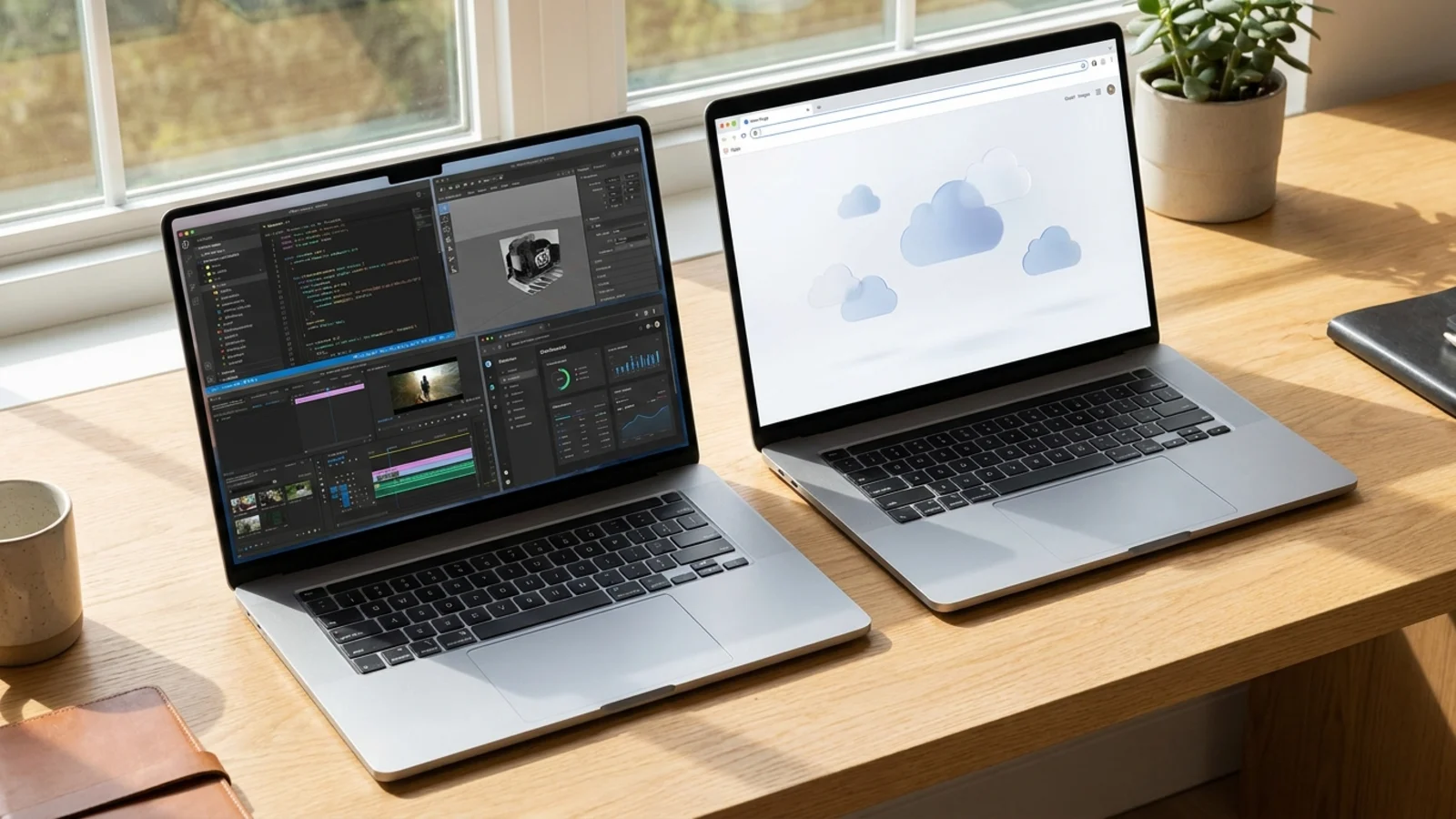
Windows | The widest choice of laptops and prices, most business software, PC gaming | Quality varies a lot between models, so read reviews closely |
macOS | People who use an iPhone, creative apps, a consistent experience | Fewer models to choose from and limited upgrades after purchase |
ChromeOS | Browser-based work, schools, simple and low-maintenance setups | Desktop apps like full Photoshop or many games do not run |
Check every app you rely on before you commit. If one program only runs on Windows, that settles it. If everything you do happens in a browser, a Chromebook is worth a look, and our Chromebook buying guide explains who they suit best.
Step 4: Match the specs to your use
Now that you know the job, the budget and the operating system, the specs are much easier to read. Focus on four things.
Processor (CPU)
The processor handles general speed. For light use, an entry or mid-tier chip from a recent generation is enough. For creative, technical or gaming work, step up to a higher tier. Newer generations usually matter more than higher model numbers from an older generation.
Memory (RAM)
RAM lets you keep more apps and tabs open without slowdowns. As a general guide, 8GB handles light use, 16GB is the comfortable choice for most people, and heavier creative or technical work benefits from more. On many thin laptops the memory cannot be upgraded later, so buy what you will need for the next few years.
Storage
Choose a solid-state drive (SSD). Capacity depends on how many files you keep locally. If you store most things in the cloud, a smaller drive is fine. If you edit video or keep large photo libraries, get more space or plan for an external drive.
Graphics
Most people are well served by the graphics built into the processor. You need a dedicated graphics chip (GPU) for modern games and some 3D or video work. A dedicated GPU adds cost, weight and heat, so skip it if you do not need it.
Step 5: Choose the right size and weight
Screen size changes how the laptop feels to carry and to use.
13 to 14 inches: easiest to carry daily, fits small bags and cramped desks.
15 to 16 inches: more room for side-by-side windows, often a number pad, but heavier.
17 inches and up: mostly for gaming or desktop replacements that rarely move.
If you carry the laptop every day, weight matters more than you think. Our picks of laptops that are easy to carry all day focus on that trade-off. If it lives on a desk, a larger screen is often the better buy, or you can add an external monitor.
Step 6: Check the details that make daily life better
Two laptops with the same processor and memory can feel completely different to use. These details are easy to overlook in a listing:
Screen quality: brightness, resolution and whether it is matte or glossy. A dim, low-resolution screen makes every task less pleasant.
Keyboard and trackpad: try them in a store if you can. You will touch them every minute you use the laptop.
Battery life: read independent reviews rather than relying on the maker's claim, which is usually measured under light conditions.
Ports: count what you plug in. If you need HDMI, USB-A or an SD card slot, make sure the laptop has them or budget for an adapter.
Webcam and microphones: important if you spend a lot of time on video calls.
Warranty and support: check how long the warranty lasts and how repairs are handled where you live.
Putting it together
By now you should have a short list that fits your job, your budget and your preferred operating system. Compare the finalists on the details from step 6, read a couple of independent reviews for each, and confirm the current price and configuration at the retailer, since specs and prices change often.
If you want a starting point, our laptop buying guides for every budget and use group our picks by use case and price, so you can jump straight to the category that fits.
Frequently asked questions
What is the most important spec when choosing a laptop?
There is no single most important spec. It depends on your use. For light use, screen quality, battery life and enough RAM matter most. For gaming, the graphics chip matters most. For creative and technical work, the processor and RAM matter most.
How long should a laptop last?
A well-chosen laptop typically stays useful for several years. Buying enough RAM and storage up front, choosing a model with a good warranty and keeping the operating system updated all help it last longer.
Is it better to buy a laptop online or in a store?
Both work. A store lets you try the keyboard, trackpad and screen. Online often gives you more choice. A good approach is to try models in person, then compare prices and return policies before you buy.
Should I buy last year's model to save money?
Often, yes. An older model at a discount can be a better deal than a new entry-level model at full price. Just check that it still receives software and security updates and that the warranty is new.
See our picks: the best laptops under $1,000
Recommended guides
- Laptops for schoolHigh school and college students who need a laptop for notes, essays, research and streaming.
- Laptops under 1000 dollarsBuyers who want a well built, fast laptop without paying flagship prices.
- Laptops for a tight budgetAnyone who needs a reliable laptop for school, work or home on a tight budget.
Or browse all our laptop buying guides.