Laptop Specs Explained: CPU, RAM, Storage and Display
Laptop specs explained in plain English: what the CPU, RAM, storage, graphics and display numbers mean, and which ones matter for the way you work.
Disclosure: some links in this article are affiliate links, so we may earn a commission on qualifying purchases at no extra cost to you. Learn more.
The processor (CPU)
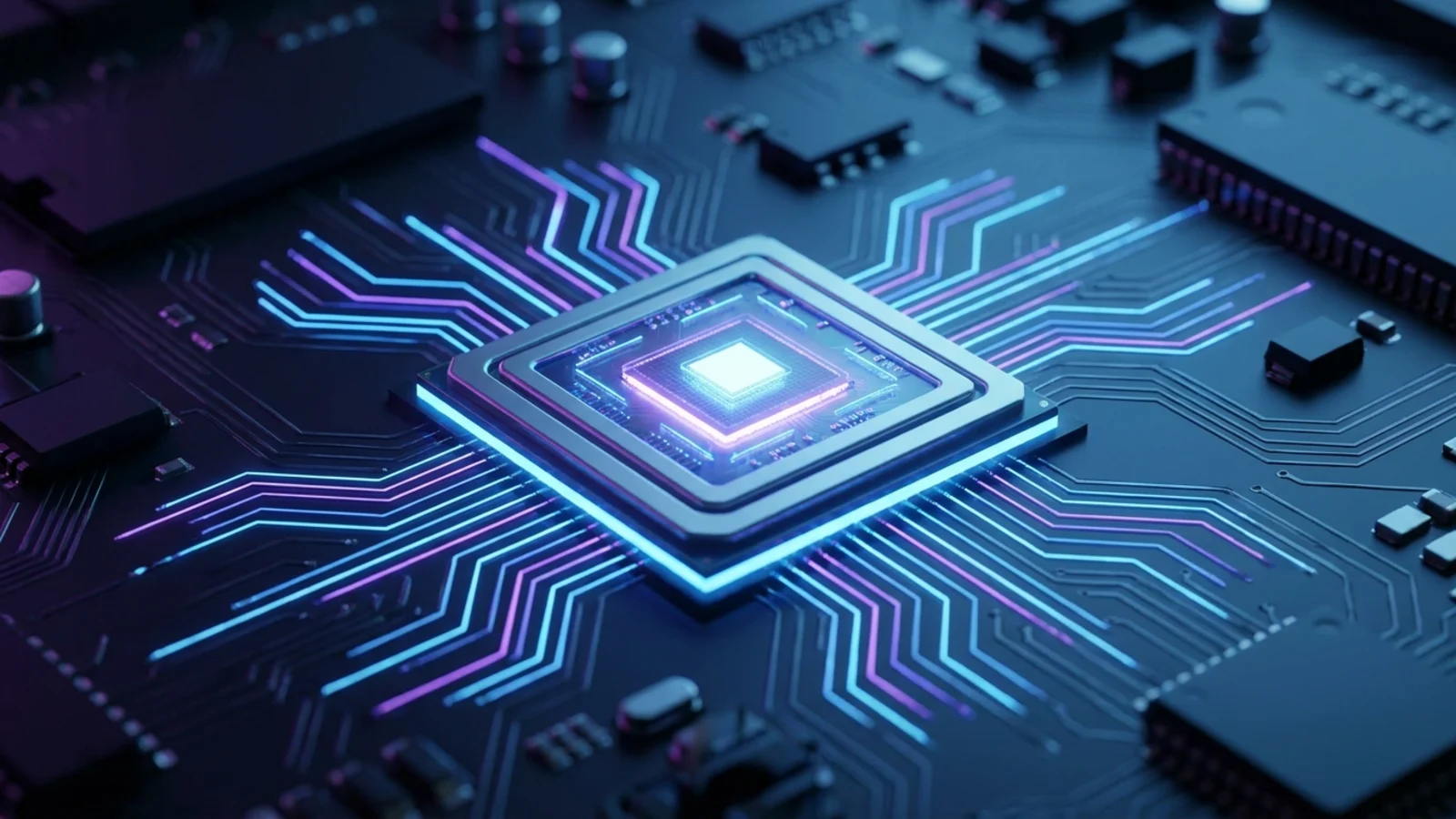
The CPU runs your apps and the operating system. A faster CPU opens apps quicker, exports files sooner and keeps things smooth when you multitask.
How to read processor names
Laptop processors come from four main makers, and each has its own naming scheme. Here are real examples from laptops in our guides:
Intel: "Intel Core Ultra 5 226V"
AMD: "AMD Ryzen AI 5 240"
Qualcomm: "Qualcomm Snapdragon X Plus"
Apple: "Apple M5 (10-core)"
The pattern is similar across brands. The brand and family come first, then a tier number (such as 3, 5, 7 or 9 for Intel and AMD, where higher usually means faster), then a model number that hints at the generation. Letters at the end often mark the type of chip, but each maker uses them differently, so check a review rather than guessing.
Qualcomm Snapdragon chips use a different design (Arm) from Intel and AMD. Windows laptops with Snapdragon chips run most everyday apps well, but some specialist software, drivers and games may not support them yet, so check your must-have apps first.
What is enough?
Light use: a mid-tier chip from a recent generation.
Heavy multitasking and office work: a mid or upper-tier chip.
Video editing, programming, data work and gaming: an upper-tier chip, ideally with more cores.
A newer mid-tier chip often beats an older top-tier one, so the generation matters as much as the tier.
Memory (RAM)
RAM is your laptop's short-term workspace. Every open app and browser tab uses some. When it runs out, the laptop slows down as it shuffles data around.
As a general guide:
8GB: light use, one or two apps at a time.
16GB: the comfortable choice for most people, including heavy browsing and office work.
32GB or more: large video projects, big datasets, virtual machines and heavy creative work.
Check whether the RAM can be upgraded later. On many thin laptops it is soldered to the board, so the amount you buy is the amount you keep.
Storage
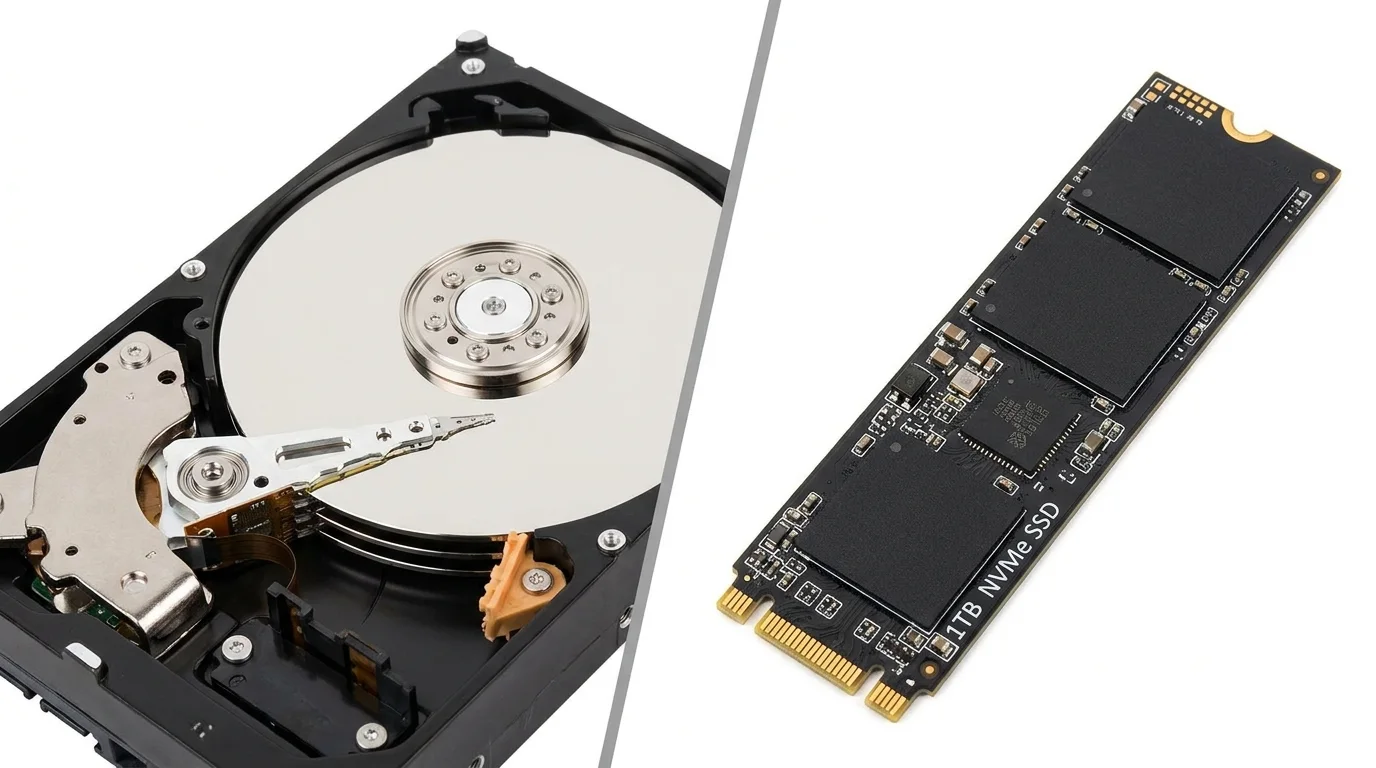
Storage holds the operating system, apps and files. Two numbers matter: capacity and type.
Capacity
Capacity is shown in gigabytes (GB) or terabytes (TB). If most of your files live in the cloud, a smaller drive is fine. If you keep large photo libraries, games or video projects on the laptop, choose more space, because a full drive slows everything down.
Type
Almost every modern laptop uses flash storage, but not all flash storage is equal. You will see labels like "1TB PCIe Gen 4 SSD" on the HP OmniBook 5 14 and "256GB UFS" on the Lenovo Chromebook Plus 14. PCIe (NVMe) SSDs are the common choice in Windows laptops and MacBooks. UFS and eMMC storage appear more often in Chromebooks and budget models. If you see a hard disk drive (HDD) as the main drive in a new laptop, skip it.
Graphics (GPU)
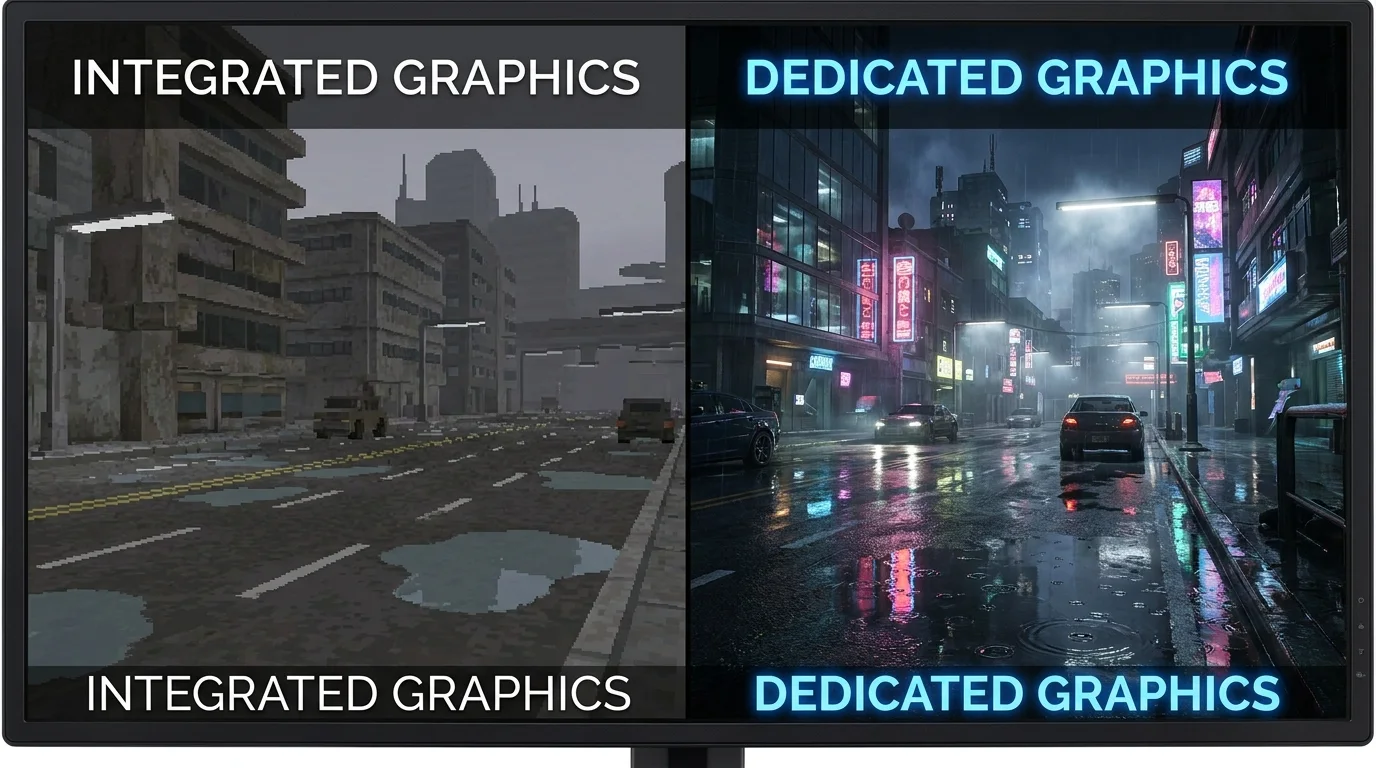
The graphics processor draws everything on the screen. There are two kinds.
Integrated graphics are built into the processor, for example the "Intel Arc 140V" in the Lenovo Yoga 9i Aura Edition. They handle everyday work, video streaming, photo editing and light games well, and they help battery life.
Dedicated graphics are a separate chip, such as the "Nvidia GeForce RTX 5050" in the Acer Nitro V 16. You need one for modern 3D games and they help with some video, 3D and AI work. They add cost, weight and heat.
If you do not play games or do heavy 3D work, integrated graphics are usually the right choice. If you do, our guide to gaming laptops explains what to look for in the graphics chip and cooling.
The display
You look at the screen every minute you use the laptop, so it deserves more attention than it usually gets. A display line on a spec sheet reads like "14.2-inch Liquid Retina XDR, 3024 x 1964, 120Hz" (Apple MacBook Pro 14-inch) or "16-inch WUXGA IPS, 1920 x 1200, 180Hz" (Acer Nitro V 16). Here is what each part means.
Spec | What it means | What to look for |
|---|---|---|
Size | Diagonal measurement in inches | 13 to 14 inches to carry daily, 15 to 16 inches for more workspace |
Resolution | Number of pixels, width x height | At least 1920 x 1080 or 1920 x 1200; higher looks sharper on larger screens |
Panel type | IPS, OLED or mini-LED | IPS is solid for most people; OLED offers deep blacks and rich color |
Refresh rate | How many times per second the image updates (Hz) | 60Hz is fine for work; 120Hz and up feels smoother and helps in games |
Brightness | Measured in nits | Brighter screens are easier to use near windows and outdoors |
Color coverage | How much of a color range the screen shows (sRGB, DCI-P3) | Matters for photo, video and design work |
For design and photo work, color accuracy matters more than resolution. Our laptop picks for graphic designers focus on screens that show color correctly.
Other specs worth a glance
Battery: shown in watt-hours (Wh). A bigger number usually helps, but chip efficiency and screen type matter just as much, so rely on independent tests rather than the capacity or the maker's claim.
Ports: USB-C, Thunderbolt or USB4, USB-A, HDMI, an SD card reader and a headphone jack. Count what you plug in every day.
Wireless: newer Wi-Fi and Bluetooth versions help with speed and range on modern routers and accessories.
Webcam: 1080p is a sensible baseline if you take a lot of video calls.
Weight: check it, especially if you carry the laptop every day.
NPU: a neural processing unit that runs some AI features on the device. Useful for specific apps, but not a reason to buy on its own yet.
How to use this when you shop
Start from your heaviest regular task and set a minimum for each spec: a CPU tier, an amount of RAM, a storage size and a type of display. Then filter out anything below those lines. Our laptop finder that filters by specs does exactly this with the laptops in our guides, and it hides any laptop whose spec we do not have rather than guessing.
On a tight budget, protect RAM and screen quality first, and accept a lower CPU tier or less storage. Our picks of laptops under $500 that get the basics right show where those trade-offs land. When you are down to two or three finalists, the side-by-side laptop comparison tool lines their specs up so the differences are easy to spot.
Frequently asked questions
Which laptop spec matters most?
It depends on your use. For everyday work, RAM and screen quality matter most. For gaming, the graphics chip. For video editing and programming, the CPU and RAM together.
Is a higher GHz number always faster?
No. Clock speed (GHz) is only one part of performance. The chip's generation, number of cores and design matter as much or more, so compare processors using reviews rather than GHz alone.
Do I need a dedicated graphics card?
Only if you play modern 3D games or do heavy 3D, video or AI work. Integrated graphics handle everyday tasks, streaming and light photo editing, and they help battery life.
What does SSD mean on a laptop?
SSD stands for solid-state drive. It stores your files on flash memory, which makes the laptop start, open apps and load files much faster than an old-style hard drive.
See our picks: the best laptops for students
Recommended guides
- Laptops for software engineersDevelopers and computer science students who compile code and run tools all day.
- Best laptops for video editingEditors who cut 1080p and 4K footage and want fast exports and accurate color.
- Best value laptopsBuyers who want a well built, fast laptop without paying flagship prices.
Or browse all our laptop buying guides.